How to Run NFS Mostwanted in Full Screen � FIXED

How to Run NFS Mostwanted in Full Screen : Need For Speed is one of the Best Racing Game Series for any Platform whether it is For PC or For Sony Playstation Developed by EA Black Box Games.Here we are Discussing on NFS Mostwanted which is the Ninth Installment in the Need For Speed Series.NFS Mostwanted Gameplay is Pretty Much Similar to all its Previous Versions where You Select or Buy Your Own Racing Car,Fully Customize it Ranging From Outer Body Parts to its Engine and Race Against Your Opponents where you need to acheive One of the Top Three Positions to move Forward in Career Profile.NFS Mostwanted Story line up is Totally Unique Where you need to Beat Top 15 Blacklist Racers and in order to Challenge these Blacklist Opponents you first need to Earn Certain Amount of Bounty and Reputation to Compete with them.If You Beat these Blacklist Opponents you get a Chance to win their Cars using the Pink Slip or You can Earn Cash Points. How to Play Android Games on PC There are Three Different Gameplay Modes in NFS Mostwanted Which are Quick Race Mode,Career Mode and Challenge Series.NFS is one of the Most Popular Multiplayer LAN Game where the Whole Racing Experience Changes and that�s the main reason that it is still now has Competitions at various levels i.e National as well International Levels.If you are a College Student then you must have Participated in the LAN Game Competition where you would Definitely Find NFS Mostwanted.Here is a Full Solution on How to Run NFS Mostwanted in Full Screen.

How to Run NFS Mostwanted in Full Screen � FIXED

How to Run NFS Mostwanted in Full Screen Windows 7 : The Best Part of Playing NFS Mostwanted is that it doesn�t require a High End Configuration PC or Laptop which means you can even play it on your Low or Mid End PC But still it suffers from some drawbacks of which one of the Most Popular Drawback is the Inability to Support Wide Screen Resoultion Monitors. How to Play Subway Surfers on PC As we know that NFS Mostwanted was Released on 2005 and because of that it doesn�t Support the Wide Screen Resolution Monitors.So if you are Using a Wide Screen Monitor with 16:9 Aspect ratio then you must have faced this issue.But Now you don�t need to Face this Problem Any more.Here is a Very Simple Solution on How to Run NFS Mostwanted in Full Screen Windwos 8 Using  NFS Most-Wanted Resolution changer a Free Tool.

 NFS Mostwanted Resolution changer  � Steps to Follow

As I mention Above You can Play NFS Mostwanted in Full Screen Using a Free tool known as  NFS Most-Wanted Resolution changer.It Automatically Adjusts the Game Resolution in accordance with Your System Resolution.Just Follow the Below Steps on How to Run NFS Mostwanted in Full Screen.
  • Extract the Zipped Folder Using Winrar or Winzip.
  • Now Paste the Extracted Contents into the Installed Directory of NFS Mostwanted where NFS Mostwanted exe File is Present.
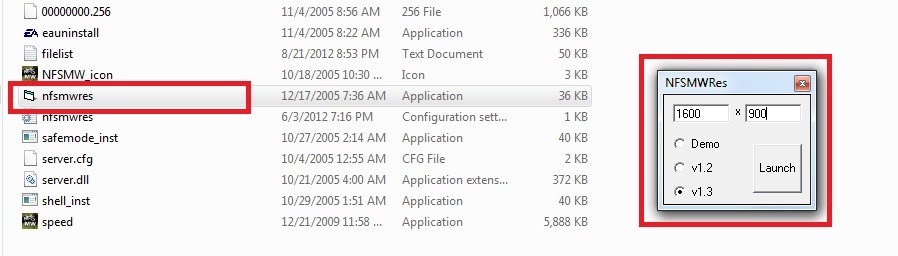
  • Now Run the nfsmwres.exe File that you have Extracted in the NFS Mostwanted Directory.
  • Next Just Fill Your Monitor Screen Resolution in My case it is 1600 x 900 as Shown below in the Image.
How to Run NFS Mostwanted in Full Screen

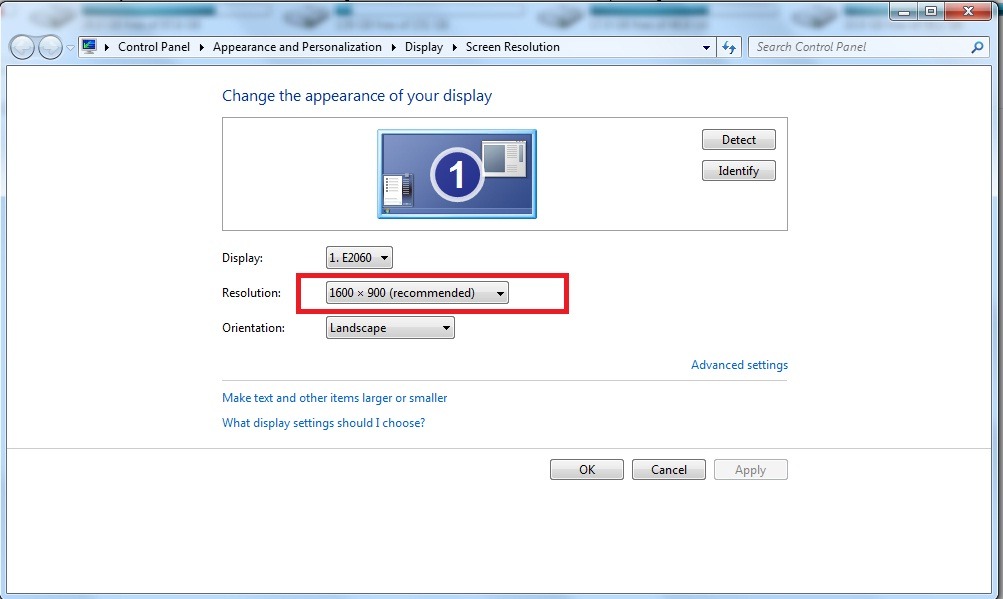
  • How to Find Your Screen Resolution : Right Click on Your Desktop Anywhere and Select Screen Resolution Option there you will find your Current Screen Resolution as shown below in the Image.
How to Play NFS Mostwanted in Full Screen
  • Make Sure to Select v1.3 and then Just Click on Launch Button.
  • That�s all and You are all Done.
  • Digg
  • Del.icio.us
  • StumbleUpon
  • Reddit
  • RSS

How to Enable USB Debugging on Android Devices � ALL

How to Enable USB Debugging on Android Smartphones or Tablets : USB Debugging Mode is a Very Important and Useful Feature on Android Devices whether they are Smartphones or Tablets operating on Different Android O.S Versions.If You are Regular Reader on Our Website then You might be Familiar with Our Post on What is USB Debugging Mode in Android and Its Merits which are discussed Already But if You are Visiting our site For the First Time Don�t Worry I will be Discussing about USB Debugging Mode in a Very Brief Way.You Might Have Seen the Option �Enable USB Debugging Mode� While Navigating Your Android Device Settings But Do You Know What Actually Does it Mean.Lets Get Started with What is USB Debugging Mode and its Advantages First.

What is USB Debugging Mode in Android ?

As We Know that we can�t Directly Put the App Codes in Android Devices to Create or RUN Apps.So We Create Apps Using the Android SDK Software on Computer and Test it For its Proper Functioning by Establishing a Connection between the Android SDK Software and Android Device.Therefore Here the Medium is Provided by USB Debugging Mode Option Present in Android Devices Also Known as �Developing Mode�.In Old Android Devices You might see a �Developing Mode� Option Instead of USB Debugging Mode but don�t worry they Both are Same Used For Testing or Creating Android Application.
Related Content � How to Play Android Games on PC

Use of USB Debugging Mode :

  • Very Useful if You want to Root Your Android Devices and Customize it.
  • Acts as a Medium Between the Android SDK Software and Your Android Device.
  • Allows Communication between PC or Laptop with Android Devices.
  • Useful For Creating or Testing Android Applications.
For More Information on USB Debugging � Visit Here

How to Enable USB Debugging on Android 2.3 Gingerbread or Later

If You are Having an Android Device with Android OS v2.3 or Later then You can Enable the USB Debugging Mode Option Simply by Going through the Following Steps.

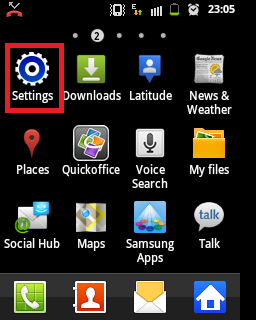
  • Open Your Android Device �Settings�.
How to Enable USB Debugging on Android 2.3.6
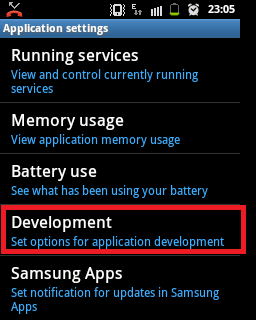
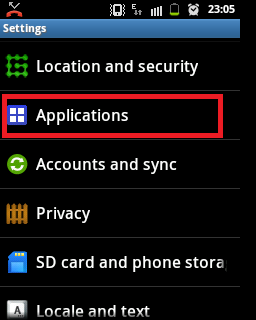
  • Here Go to �Applications� Section.
Enable USB Debugging Mode on Android 2.3
  • Scroll Down to Bottom and Tap on �Development Option�.
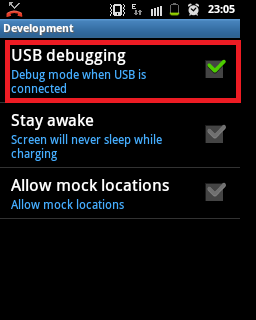
USB Debugging Mode
  • Here Just Check Mark the Option �USB Debugging�
Enable USB Debugging
  • That�s all and USB Debugging Mode will be Enabled.

How to Enable USB Debugging on Android 4.1.1 or 4.0 ICS

Google has Slightly Made Some Modification in Android 4.1.1 or 4.0 ICS Versions But don�t worry it is Simple to Enable USB Debugging Mode in this Version too.Just Follow the Below Given Steps one by One.
  • Open Your Android Device �Settings�.
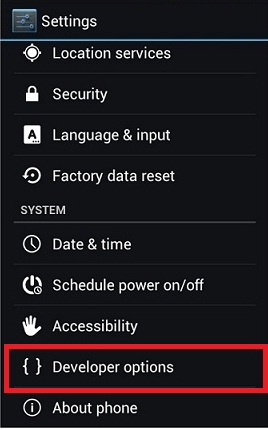
  • Here Select the �Developers Option� Under System Section.
How to Enable USB Debugging on Android 4.1 or 4.0
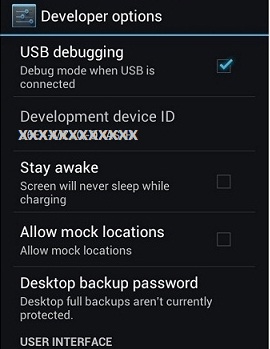
  • Here Just Check Mark the Option �USB Debugging�
USB Debugging Android 4.0
  • That�s all and USB Debugging Mode will be Enabled.

How to Enable USB Debugging on Android 4.2.2 Jelly Bean

Android 4.2.2 Jelly Bean is one of the Best Android OS till now that you can find in all Latest Android Smartphones or Tablets.Having the Ability of Installing Custom ROM�s,Rooting or Updating Your Android Devices is Just Awesome.But Google has Made Some Changes in the New Android 4.2.2 Jelly Bean by Hiding the USB Debugging Mode Option.Though it is very Simple to Find and Enable the USB Debugging Mode by Just Following the Below Given Steps.
  • Open Your Android Device Settings -> About Phone
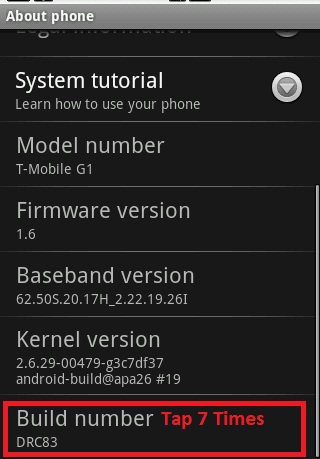
  • Scroll Down at the Bottom to Build Number.
  • Tap Build Number 7 Times Continuously till you get a Message �You are now a developer!�
How to Enable USB Debugging on Android Jelly Bean
  • Now Go Back to Settings Section
  • Here You will Now See a New �Developers� Section.
  • Select �Developers Option�.
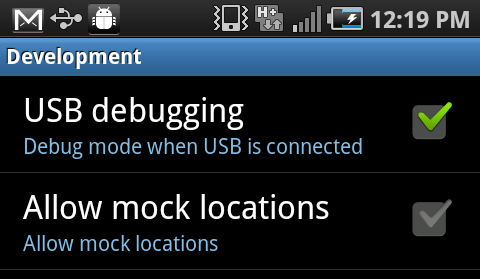
  • Here Just Check Mark the Option �USB Debugging�.
USB Debugging
  • That�s all and USB Debugging Mode will be Enabled.

  • Digg
  • Del.icio.us
  • StumbleUpon
  • Reddit
  • RSS

How to Root Micromax A110 Canvas 2 � Working

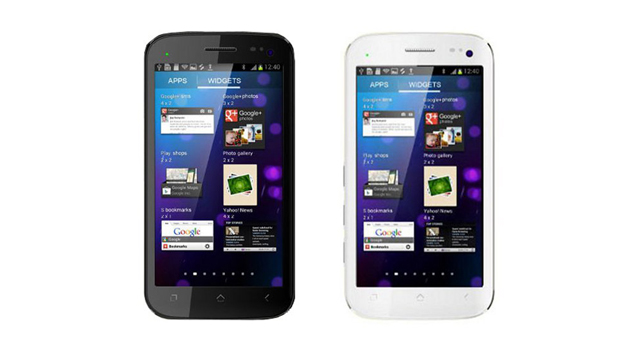
How to Root Micromax A110 Canvas 2  : Today I am going to Share How to Root Micromax A110 Canvas 2 Using Bin4ry Rooting Toolkit with You.In my Previous Post I have Discussed How to Root Samsung Galaxy Y S5360 and now i am here with you to discuss rooting your Micromax A110 Canvas 2.Micromax A110 Canvas 2 is one of the Best Selling Android Smartphone From Micromax even now People are Buying this Amazing Smartphone Just Because of its Powerful Technical Specifications at a Very Affordable Price Comprising of 1 GHz Dual Core Processor with 512 MB RAM and a Sophisticated Premium Smartphone Design.Micromax A110 Canvas 2 Runs on Android v4.0.4 ICS which is Upgradable to Android v4.1 Jelly Bean.It Features 8MP Primary Camera with 0.3 MP Front Facing Camera For Video Calling.I would really say it is trully the best smartphone at very Cheap Price of Rs 10,500 Only.Get the Power to Use Dual SIM(GSM+GSM) with 3G and Wi-fi Connectivity.Lets now get Started with Rooting Micromax A110 Canvas 2.So Here below are Full Instructions on How to Root Micromax A110 Canvas 2 to Install Custom ROM�s to Your Micromax A110 Canvas 2.Read below Guide on How to Root Micromax A110 Canvas 2 Using Bin4ry Rooting Toolkit.
How to Root Micromax Canvas 2

What is Rooting � Is it Safe or Dangerous ?

Basically Rooting is a Process by Which you gain Control Over all Your Android System Files and thus Changing them as per Your Requirements which you can�t do in any Unrooted Device.Install Applications that Requires Access to Android System Files for its Working.Most of the Users Use Rooting to Install Custom ROM�s for their Android Devices in order to Get Better and Faster Performance than the Company Default ROM.
Rooting Process is Very Dangerous as it can lead to Void Your Micromax A100 Canvas 2 Warranty Period as well as Damaging Your Smartphone if you miss any of the Steps while Rooting Your Micromax A110 Canvas 2.Therefore Please Read the Safety Instructions while Rooting Your Micromax A110 Canvas 2 so as to Keep Your Smartphone Safe.Though You can Gain Your Warranty Back by Unrooting Your Micromax A110 Canvas 2.Read Instruction on How to Root Micromax A110 Canvas 2 to Install Custom ROM�s

Benefits of Rooting Micromax A110 Canvas 2 :

  • Install Latest Custom ROM�s to Get Faster Performance.
  • Get Full Access to Customize Your Micromax A110 Canvas 2.
  • Enjoy Installing Apps Directly to SD Card Saving Internal Memory.
  • Uninstall or Remove Pre-installed Apps or System Apps.

Safety Instructions While Rooting Micromax A110 Canvas 2:

  • Don�t Disconnect Your Micromax A110 Canvas 2 While in the Rooting Process.
  • Make Sure that Your Micromax A110 Canvas 2 is 70% Charged at least.
  • Make a Backup of all Your Important Apps or Files Using Astro Manager.
  • Disable all Background Applications Including Antivirus or Firewall.
    • Please Read Disclaimer Before Rooting Your Micromax A110 Canvas 2.

Disclaimer :

Rooting Process is Dangerous as already discussed above it can void Your Smartphone Warranty Period Though it can be Recovered after Unrooting but we don�t Guarantee about this.Also We are Not Responsible For Any Harm that Comes to Your Micromax A110 Canvas 2 After trying the Given Procedure.This is Intended to be Used For Information Purposes Only.TRY AT YOUR OWN RISK.

Requirements For Rooting Micromax A110 Canvas 2 :

How To Root Micromax A110 Canvas 2 : Steps to Follow

  • Download the USB Drivers and Bin4ry Rooting Toolkit from Above.
  • Connect Your Micromax A110 Canvas 2 and Enable USB Debugging Mode.To Enable USB Debugging Mode Settings -> Applications -> Development-> Enable USB Debugging Mode.
  • After that Change the Mode from USB Storage to Media Device.
  • Unzip the Bin4ry Rooting Toolkit to a Folder Using Winrar or Winzip.
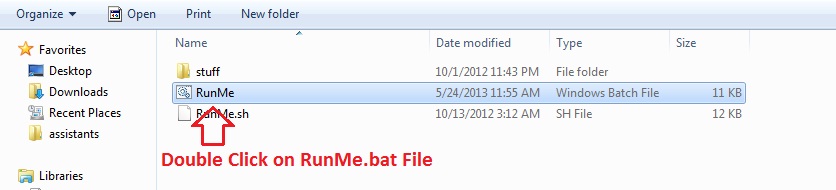
  • Here Run the RunMe.bat File as shown below in the Image.
How to Root Micromax A110 Canvas 2
  • Next You will See a Command Prompt like Box with Green Text.
  • Follow the Screen Instructions and Here Just Press 1 to Start the Rooting Process which will take 2-3 Minutes approx.
Note - Your Micromax A110 Canvas 2 will Restart During the Process so Don�t Panic
  • After Reboot You will See Some Files being Copied to Your Micromax A110 Canvas 2
  • When Process is Done You will see a Completion Message �Have Fun!�
  • That�s all and Now Your Micromax A110 Canvas 2 is Successfully Rooted.

  • Digg
  • Del.icio.us
  • StumbleUpon
  • Reddit
  • RSS

Forgot Pattern Lock in Android | Unlock | Reset : FIXED

Have You Forgot Pattern Lock in Android ? Want to Recover or Reset Pattern ? � Don�t Worry Just Read this Post and get Your Problem Solved within few minutes.Every User wants to have Maximum Privacy for its Smartphone so that no one can steal his or her Personal Important Data like Phone Contacts,Messages,Photos or Videos etc and thus to Maintain Privacy we would like to Setup a Password,PIN or Pattern Lock in Our Android Smartphones or Tablets.Pattern lock is all new Security Protection available in Devices like Android Smartphones,Tablets or even in Laptops.It is the Best and Easiest method to Lock Your Smartphone and thus Preventing its Unauthorized access without Your Permission. How to Install Android Apps Directly to SD Card without RootingHaving a Pattern Lock on Your Android Smartphone or Tablet frees you from the tension of Remembering Your Password every time since remembering a Pattern is lot easier than remembering a Password But Still sometimes most of the Users Forgot Pattern Lock Android Devices and thus can�t access their own Smartphones or Tablets therefore if you are one of them who has forgot the Pattern Lock then don�t worry I will help you solve your Problem by Unlocking Your Forgot Pattern Lock Android.Pattern Lock is also Available in Windows Phone and Apple iOS Devices.

What is Pattern Lock ?

Pattern Lock is all new protection method that lets you lock your Device through a Pattern which means that to unlock your Device you need to Correctly draw the Pattern in order to gain access to Your Device. How to Download Playstore Apps Directly to PC Pattern Lock is the best method for locking your Phone instead of Using Password or PIN because it is easier to Forget Password or PIN as compared to forgetting Pattern.Pattern Lock is now available in Android,Apple iOS,Windows Phone and even in laptops too.
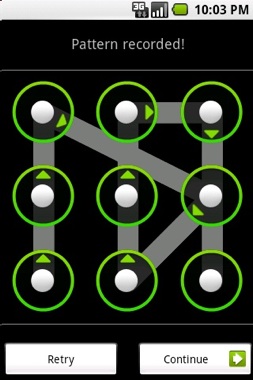
Pattern Lock

How to Unlock Forgot Pattern Lock in Android � Steps to Follow

If You have Forgot the Pattern Lock in Your Android Smartphone or Tablet and are worried about unlocking your Device then Just Follow the Below Given Instructions Carefully to Unlock the Pattern lock in Your Android Device.

Note - Internet Connection is Required to Unlock Forgot Pattern Lock in Android which means your Android Device must be Connected to Internet else this method will not work.
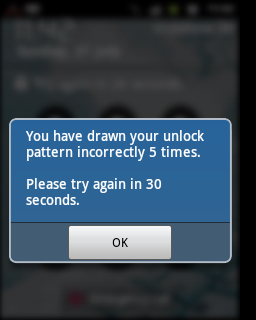
  • First of all Draw any Wrong Pattern 5 times Continuously
  • Draw it Until You get the Message �You have incorrectly drawn your unlock pattern 5 times. Please try again in 30 Seconds� as shown below in the Image.
 Forgot Pattern Lock in Android - Step 1
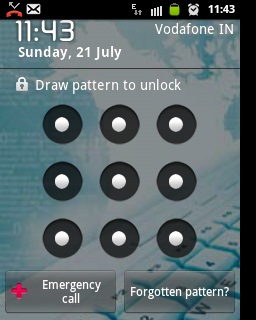
  • Now You will be able to See an Option �Forgot pattern� as shown below in the Image.
 Forgot Pattern Lock in Android - Step 2
  • Here Just Click or Touch on the �Forgot pattern� Option.
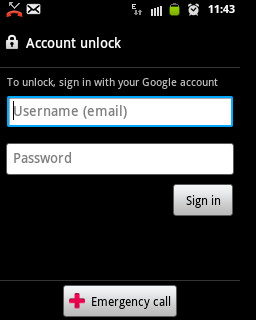
  • Next You will asked to Enter Your Google Account Details as shown below in the Image.
 Forgot Pattern Lock in Android - Step 3
  • Here You need to Enter that Google Account that is Associated with Your Android Device.
  • After Successful Login You will See an Option to Reset Your Pattern Lock.
  • That�s all and You are all Done.
  • Digg
  • Del.icio.us
  • StumbleUpon
  • Reddit
  • RSS

How to download instagram photos and videos?

Instagram recently launched video service where you can capture and share your moments with your friends. You can give a life to your static instagram pictures. When you go to take a photo on instagram, you can find video icon. You can capture video up to 15 seconds through instagram camera. You can even use cinema feature that lets you stabilize your shaky videos after you take it.

Easy way to download Instagram videos

Instagram videos can be downloaded using 2 ways. One using Firefox video downloads plugin that allows you to download streaming videos online. There are lots of Firefox addons to download videos from the web; using such addons on Firefox you can download instagram videos to your PC.
Flashgot Firefox addon that we reviewed earlier supports downloadinginstagram videos. With this addon you can download any streaming videos on the internet. It supports various websites. Once you�ve installed it, just visit the webpage with a video and you will see the flashgot icon in your address bar blinking. You can click it and download to your PC.
download instagram videos
You can even download Instagram videos using Download helper or Antvideo downloader extensions for Firefox.
Another simple method to download instagram videos is using Torch web browser. Torch web browser is based on the chromium technology, so looks similar to Google chrome. It comes with media downloading and sharing features. Torch browser works best with torrent downloads, video files etc. With built in functions to download media files, you can easilydownload Instagram videos to your PC.

Download Instagram videos offline

Once you�ve installed torch browser on your PC, visit the Instagram video page and play the video. Once it starts playing, you can see the media icon which is grayed out previously turns live. Simply click the media/video icon to download the instagram video offline to your PC.
torch browser


Save Instagram Photos to PC

There is a Windows desktop client Instagrille by Pokki that lets youdownload your instagram photos to your PC. It is a standalone desktop client for Windows PC.  You can simply sign in with your instagram account and view, browse Instagram photos and download them easily.
There is another method to download Instagram photos to your PC. Actually it isn�t a hard way. But using right click inspect element in your Google chrome, you can locate the instagram image and save them to your PC.
Open the Instagram photo using Google chrome and right click on the image > select inspect element option.
instagram photos download to pc (1)
The image link will be highlighted and on the right side, you can find the image JPG url. Click the jpg url and open in a new tab. Right click and save the image to your PC.
instagram photos download to pc (2)
If you find any more new methods to download instagram videos, do let us know through comments below.

  • Digg
  • Del.icio.us
  • StumbleUpon
  • Reddit
  • RSS