How To Create Vpn connection and list of vpn servers

In this tutorial I am going to show you How to Establish a Vpn connection.Generally Vpn connections are used for access the blocked sites


What is Vpn?

A virtual private network (VPN) extends a private network across a public network, such as the Internet. It enables a computer to send and receive data across shared or public networks as if it were directly connected to the private network, while benefiting from the functionality, security and management policies of the private network.[1] This is done by establishing a virtual point-to-point connection through the use of dedicated connections, encryption, or a combination of the two.


Follow the below Steps to Establish a Vpn Connection :

Step1 :  ?l??k ?n Start � Run , if you are Using Windows 8, Then Click on start and search for Run, or just hold down windows key and press  � R �.


Type   �control� without inverted commas in the Run box and Hit Enter. Control panel will open

Step2 : click on internet option. If your not able to see internet option then change the view to small icon (or)large icon 


Step3 :  A new popup box will appear then select   connections>>Add Vpn


Step4 : In the  internet address box type vpn server address from the  below list Eg: 67.212.175.123 and hit Create


Step5: Later it will ask User name and password Enter the user name and password from below list W.r.t to location your selected

     Eg: Username: freevpnaccess.com  password : 2259


                                                                You are all done.


LIST OF SERVERS :                                                                                                                 
                                                                                                                       
Location
VPN Server
Protocol
Username
Password
US - Chicago
67.212.175.123
PPTP
freevpnaccess.com
2259
UK - London
83.170.84.216
PPTP
freevpnaccess.com
8513
Canada - Montreal
184.107.164.10
PPTP
freevpnaccess.com
2188
NL - Haarlem
212.7.192.139
PPTP
freevpnaccess.com
5387
US - Miami
69.60.121.29
PPTP
freevpnaccess.com
2860
UK - Maidenhead
94.76.233.203
PPTP
freevpnaccess.com
2845


Recevie Our posts Directly to your in inbox ! Signup for our Email News Letter .Click here to Signup.

Get your own favorite tip published! Know a neat tech tip or trick? Then why not have it published here and receive full credit? Click here to tell us your tip.

  • Digg
  • Del.icio.us
  • StumbleUpon
  • Reddit
  • RSS

How To Enable Hibernate In Windows 8 & 8.1

Lots of Things had been Changed in Windows 8  & 8.1 Compared to Windows 7 . Some of the Settings has been Disappeard In This tutorial I will show You how to enable Hibernate Option in Windows 8 & 8.1 


What is Hibernate ?
                        
                        Hibernation is powering down a computer while retaining its state. Upon hibernation, the computer saves the contents of its random access memory (RAM) to a hard disk or other non-volatile storage. Upon resumption, the computer is exactly as it was upon entering hibernation. When used to save power, hibernation is similar to sleep mode and saves more power at the cost of slower resumption.


Steps To Enable Hibernate in Windows 8 & 8.1 

Step 1: Press Win + W key  to open up Setting search menu. Then Type �Power� , Windows will Show you Few Results, You have to Click on �Power Option�  Now From the Left Pane, Click on Choose What the Power Button do.

                                                                    (or )

                         Press Windows + R to get �run� window and type �powercfg.cpl�


                      image

                                     Hit enter. Now you will be lead to �Power options� window.


Step 2: Then on Next Screen Click on  Change Settings that are currently Unavailable.


Step 3:  Now Scroll Down to �Shutdown Settings� Section, and Check  Hibernate box to Enable it and Click on Save Changes.


Step 5: Everything is done, Now next time whenever you need to Hibernate your PC, just Move your Mouse pointer to right corner of your screen to Show up Charm screen, Click on Setting> Power.


In Windows  8.1 when you Right Click On the Start Button you can see hibernate Option there also


                            image


Recevie Our posts Directly to your in inbox ! Signup for our Email News Letter . Click here to Signup.

Get your own favorite tip published! Know a neat tech tip or trick? Then why not have it published here and receive full credit? Click here to tell us your tip.


  • Digg
  • Del.icio.us
  • StumbleUpon
  • Reddit
  • RSS

How To get A List Of All Files In A Folder- Using Cmd

In this simple tutorial, I�ll show you how to print out a list of files in a folder. There is plenty of shareware programs which can do this, but I think that the simplest way to do this is with using Command Promt ( cmd).

1. Go to Start, then click Run. In Run option type cmd and click OK.
2. After this will open cmd.exe ,find folder which you want to print out with cmd, If you do not know how to move through the directories using cmd, see this post: How to find directories with cmd.
3. When you find specified folder, with this command dir > list.txt, you�ll create text document with list of files.
Example:
I want to print list of all files in folder with path F:\songs
In cmd I�ll write E: and press enter , then write cd and with TAB find folder movies and press enter . Then write dir > list.txt In folder with path E:\movies I will find text document list. txt . Open that text document and print out. It looks like this


                  After this list.txt created in F:songs    


List.txt looks like this


All is Done.............!!!!!!!!!!!!!!!!


Recevie Our posts Directly to your in inbox ! Signup for our Email News Letter . Click here to Signup.

Get your own favorite tip published! Know a neat tech tip or trick? Then why not have it published here and receive full credit? Click here to tell us your tip.


  • Digg
  • Del.icio.us
  • StumbleUpon
  • Reddit
  • RSS

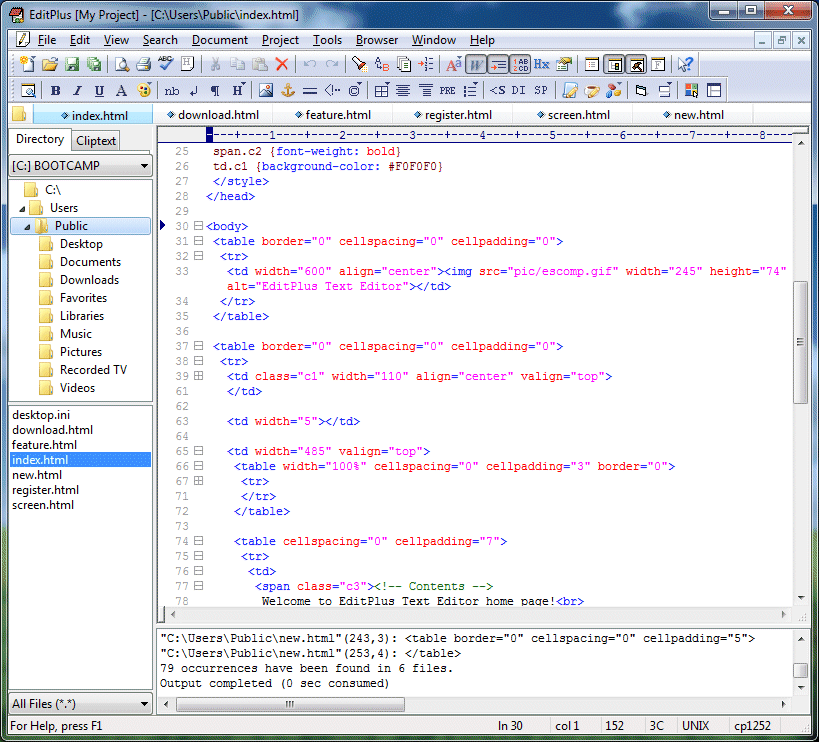
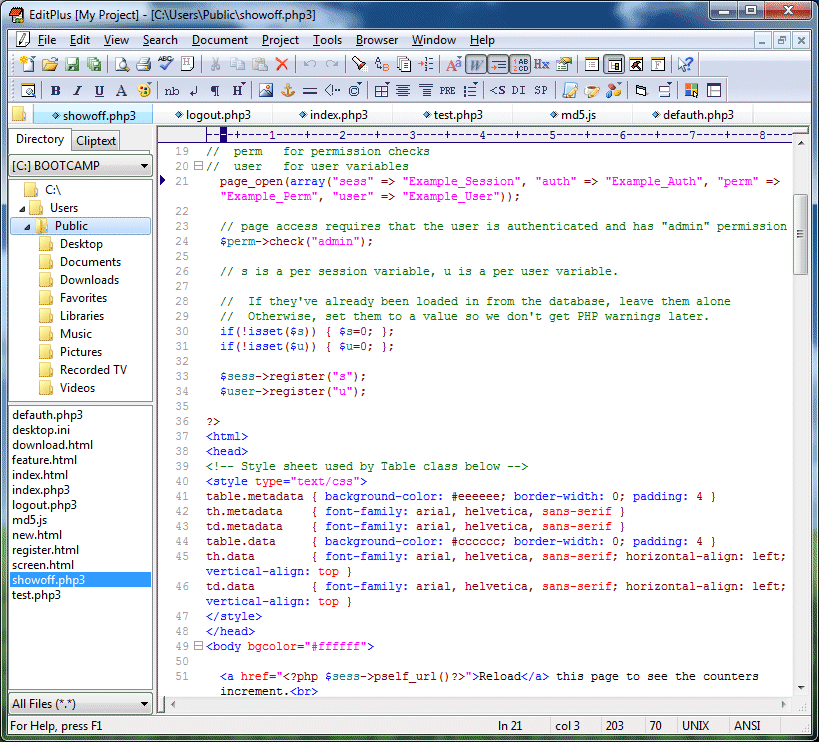
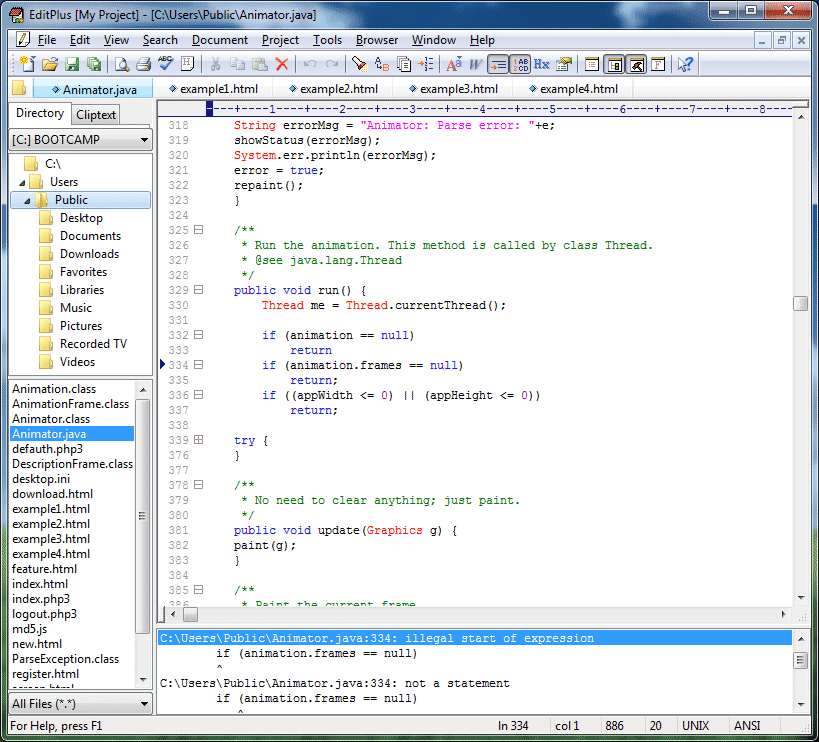
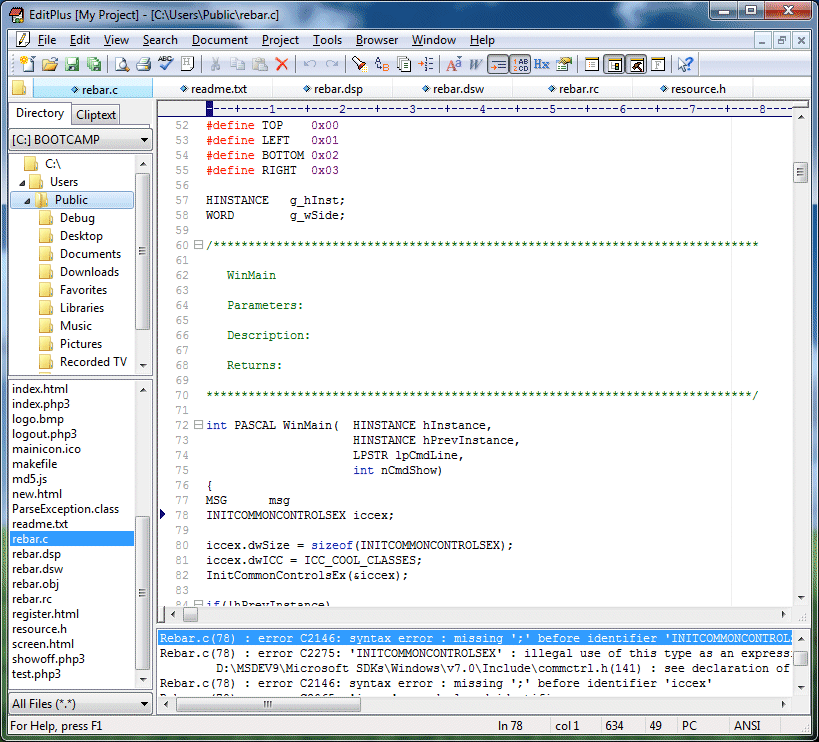
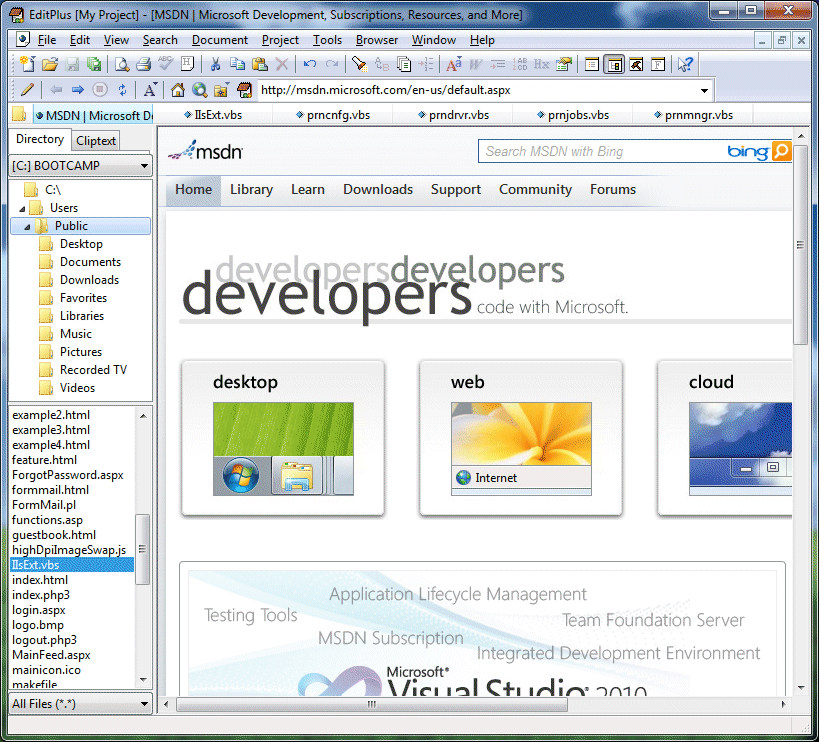
EditPlus text editor free Download


EditPlus is a text editor, HTML editor, PHP editor, Java editor and Hex Viewer for Windows. While it can serve as a good Notepad replacement, it also offers many powerful features for Web page authors and programmers.


  • Syntax highlighting for HTML, PHP, Java, C/C++, CSS, ASP, Perl, JavaScript, VBScript, Python and Ruby on Rails. Also, it can be extended for other programming languages based on custom syntax files.
  • Seamless Web browser for previewing HTML pages, and FTP (also sftp and FTPS) feature for uploading local files to FTP server.
  • Other features include Hex Viewer, HTML toolbar, user tools, line number, ruler, URL highlighting, auto completion, cliptext, column selection, powerful search and replace, multiple undo/redo, spell checker, customizable keyboard shortcuts, and more.

                                       http://goo.gl/A6b6ng
                                                 Password :  techradarweb


Recevie Our posts Directly to your in inbox ! Signup for our Email News Letter . Click here to Signup.

Get your own favorite tip published! Know a neat tech tip or trick? Then why not have it published here and receive full credit? Click here to tell us your tip.


  • Digg
  • Del.icio.us
  • StumbleUpon
  • Reddit
  • RSS

How to Keep track of all Your Passwords Securely with Keepass

How to Keep track of all Your Passwords Securely ? � Remembering passwords is considered as one of the most difficult task which leads to frustration especially when you can�t remember them after hundreds of try and ultimately it results into resetting your old password to new password by verifying your details thus consuming lots of time.It is easy to remember a single password but what if you are using different passwords for registering for different sites like survey sites,social networking sites etc to have better security since it good to use different passwords because you can�t trust such sites and don�t want to end up losing all your important accounts at the same time therefore never use the same single password everywhere.Though this will provide you safety and privacy protection but I have seen most of the people forgetting these passwords no matter how hard they try to remember even sometimes i too forget these passwords therefore I have found a very simple and safe method by which you can keep all your passwords in a database which is also protected by a sinlge password.Here we are using Keepass password manager that will save all your passwords with a single password providing High level of security to your keepass account which ensures that no one can easily crack your keepass account.

What is Keepass ?

Keepass is a free open source password manager which helps in managing all your passwords in a single database that is locked up by a Master password which means that you can eaasily retrieve all your passwords just by remembering a single master password.

Is it safe to save all your passwords using Keepass ?

It is 100% safe to save your passwords in Keepass as it uses the best and most secure encryption algorithms known as AES and Twofish for encrypting the database making sure that no one can easily hack into your Keepass account.

1 � Keepass Download :


How to Keep track of all Your Passwords Securely Using Keepass � Steps to Follow

  • Download the Keepass and Extract the downloaded zip file to your desired location.
  • Run the Keepass.exe and Click on File -> New and Here Provide a name for your database.
How to Keep track of all Your Passwords Securely - Keepass 1
  • Next it will ask you to set up a Master Password for your database.
How to Keep track of all Your Passwords Securely - Keepass 2
Note - Make sure to set a strong master password so that it can�t be easily retrieved
  • Now it will ask you to configure your database where you can provide database name and its description as well selecting the type of encryption.
How to Keep track of all Your Passwords Securely - Keepass 3
  • After Configuring the Database you can save your passwords in the database.
  • That�s all and You are all done.


Recevie Our posts Directly to your in inbox ! Signup for our Email News Letter . Click here to Signup.

Get your own favorite tip published! Know a neat tech tip or trick? Then why not have it published here and receive full credit? Click here to tell us your tip.


  • Digg
  • Del.icio.us
  • StumbleUpon
  • Reddit
  • RSS

Use Keyboard as Mouse � How to Guide

Recently My Mouse Stopped Working because of Drivers got Currupted, Device Drivers Getting Currupted in Windows May not be the Common Problem, But Can happen anytime with you, Due to this Problem i was not able to use my mouse. I Tried every possible Solution like uninstalling drivers and restarting my PC. Unplugging and then pluging in my mouse back, and yeah Searched internet too, Since i was not able to use my mouse, i had to UseKeyboard as Mouse While Finding for solution to this Problem.
Guess What ? Nothing Helped and Had to Refresh my Windows 8, But Hey, Everything happens for good. Thankfully I knew how to Use Keyboard as Mouse flawlessly. Well this was just my Reason, at times there are situations where you may need to Substitute your mouse with Keyboard. So today in this tutorial we will Learn to Use Keyboard as Mouse In Windows.

How to Use Keyboard as Mouse in Windows


Windows OS has an Inbuilt option Called MouseKeys, Not much people are aware of it but yes now you are.  You can Enable/disable and disable MouseKeys very Easily.
  • You can Enable it by Pressing  Alt + Shift + Numlock keys. As soon as you do it, you will be prompt with the below dialog box, Just Click Yes to it.
Use keyboard as mouse

  • Make Sure your Numlock is Off while you Use keyboard as mouse.
  • Done !!! Now you will see MouseKeys icon on your taskbar, which means now you are all set.
  • Now talking about the Controllers,  Use 8,2,4 and 6 Keys from Numpad to move Up, Down, Left and Right Respectively.
Alternatively You can also use Third Party Program Called NeatMouse , This software is portable, Main advantage to use it is it gives you better Control because of additional options that it makes available. it have an option to Remap Controller keys according to your Comfort.
Probably we will have to Use Keyboard as Mouse temporarily and not for long time so one may not prefer to get third party software for this task, but many may do it as it is free and can be helpful.


Recevie Our posts Directly to your in inbox ! Signup for our Email News Letter . Click here to Signup.

Get your own favorite tip published! Know a neat tech tip or trick? Then why not have it published here and receive full credit? Click here to tell us your tip.


  • Digg
  • Del.icio.us
  • StumbleUpon
  • Reddit
  • RSS